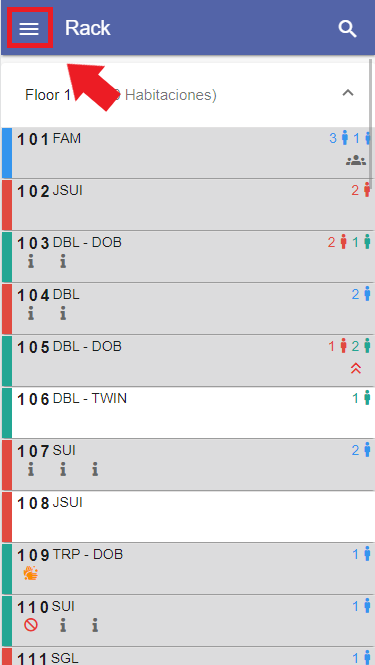
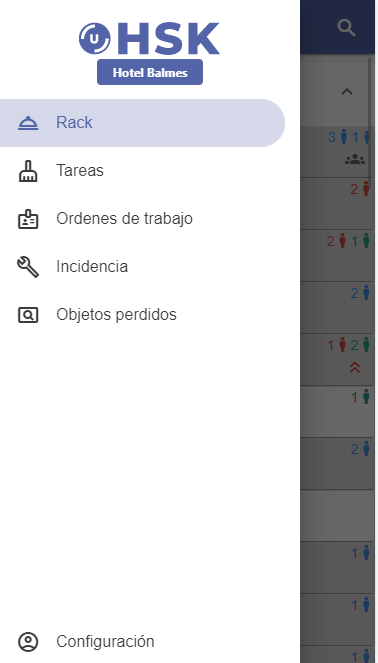
To access the Space Rack category from Ulyses HSK mobile, open the dropdown menu that appears at the top left and select Rack.
From there you can perform the following operations on the task sheets:
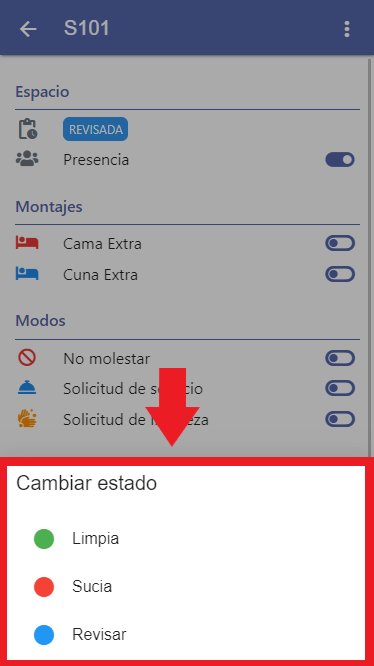
Change space status
This consists of changing the status of the space to clean, dirty, or pending review.
To do so:
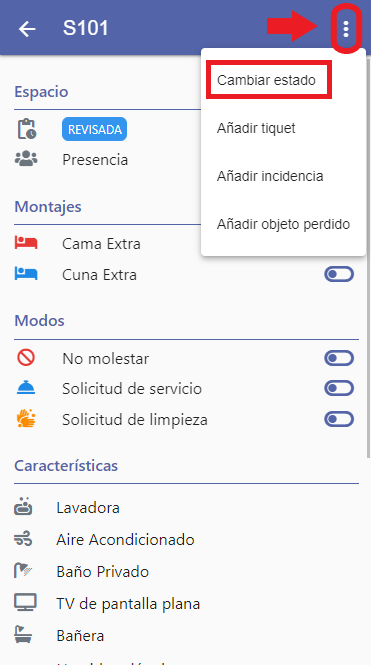
- Click on the space you want to modify > Click on ፧ at the top right > Change status to...
- Select the new status.
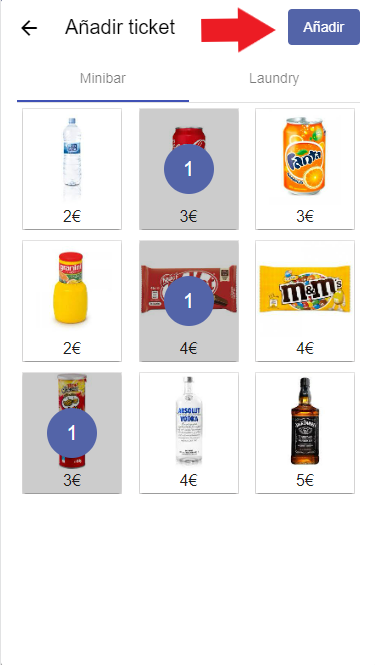
Add a charge to a roomThis consists of adding charges to the room account, such as adding a minibar or laundry charge:Click on the space where you want to add the charge > Click on ፧ at the top right > Add ticketSelect the products you want to add to the room and click add.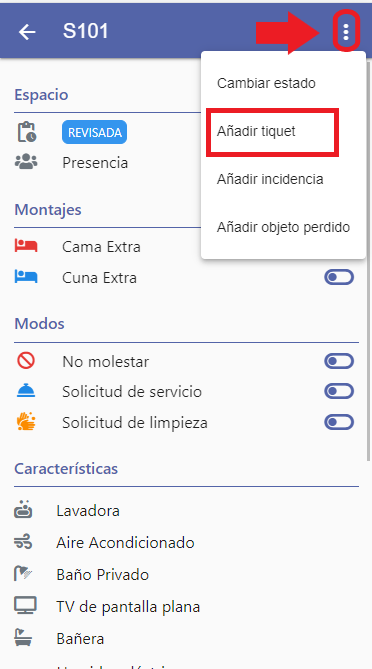
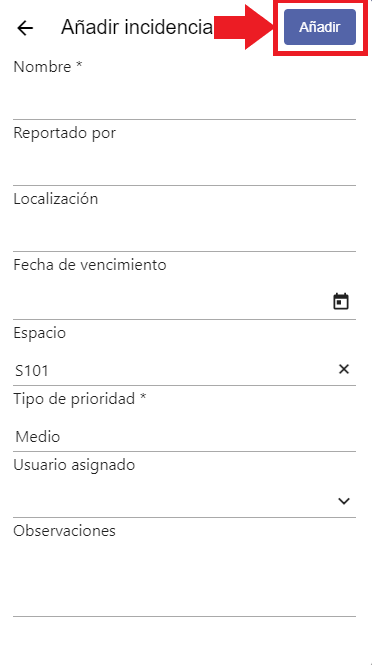
 Report an incident in a roomTo do so:Click on the space where you want to add the incident > Click on ፧ at the top right > Add incidentThen complete all the details about the incident in the form that appears and click add.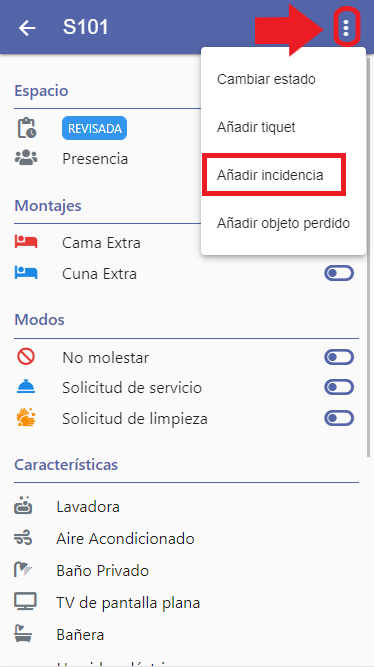
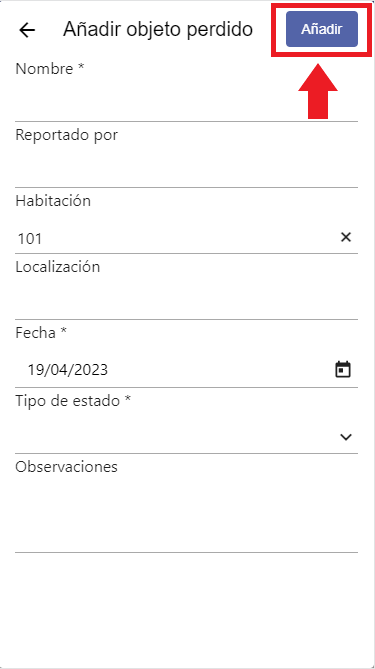
 Report a found or lost itemTo do so:Click on the space where you want to add the incident > Click on ፧ at the top right > Add lost itemThen complete all the details about the lost item in the form that appears and click add.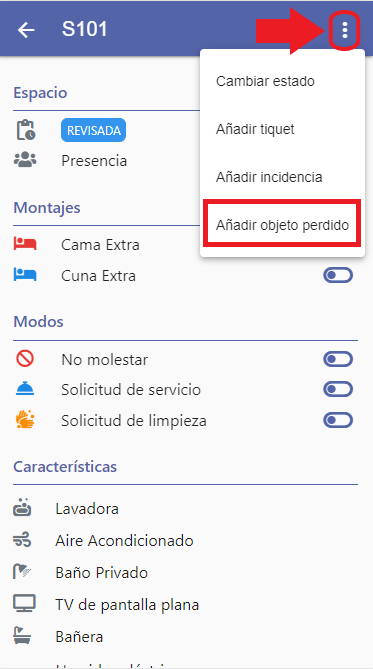
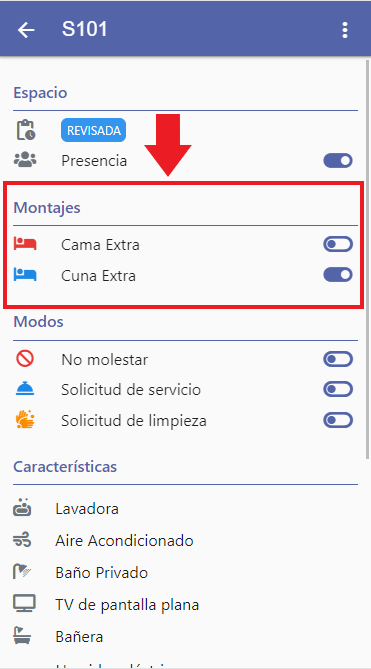
 View setupsIt is useful for the housekeeping team to know which items need to be placed in each space so that, once the setup has been completed, they can verify that everything is in place and uncheck it from their task list.
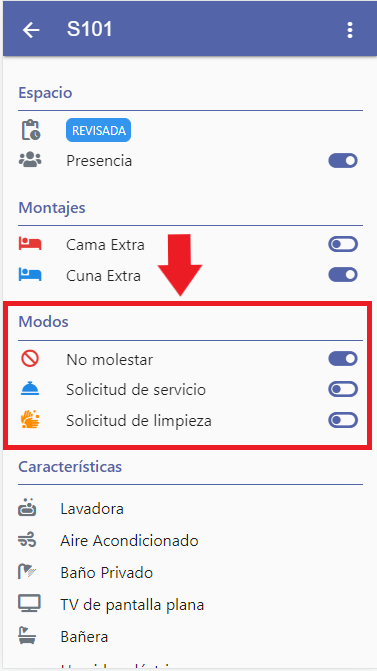
 View room modesIt is useful for the housekeeping team to know which modes are active and also to be able to modify them.