The purpose of this article is to explain the function of Accommodation types and subtypes in Ulyses Cloud, as well as to understand their creation at the chain level and finally learn how to configure their behavior in the property.
- Creation of types and subtypes
- Configuration of types and subtypes
- Configuration of combined types
- Managing Cleaning Status Based on Accommodation Type
Difference between types and subtypes
Both types and subtypes are ways to classify our inventory (rooms, apartments, etc). While types directly affect the selling price of the inventory, subtypes do not. Some examples of types could be standard rooms, suites, or junior suites, while some examples of subtypes could be Twin, King, or Run of the house.
It is important not to confuse types with accommodations, since the latter, despite having the same name as a type and having an associated type, Accommodation types are the basis for calculating reservation forecasts, for controlling the number of Accommodations of a specific type, and for controlling overbookings.
In this scenario, Ulyses Cloud not only allows us to know the number of Accommodations of a specific type but also how many of a specific bed type, among other things.
Creation of types and subtypes
To create new types or subtypes in a property, go to
- Chain Configuration > Types or Subtypes and assign the new value to the desired property
- Property Configuration > Types or Subtypes > Create new
In the record of a type, you will findType codeTranslatable type nameGroup to which this type belongs. Used for generating reports laterType descriptionCombined type: Indicates if the type is combined.The record of a subtype is even simpler and only includes the first three.Once any of the above have been created, we will assign which property or properties will have access to each of them. To do this, simply check the corresponding checkbox in the table.If we wish to stop using a type/subtype in a property, we can also uncheck it in the previous table. In that case, Ulyses Cloud will evaluate what other possible actions we can take with it. As a general rule, if that type is being used in reservations, we can deactivate or replace it. If, on the other hand, it has no dependencies, we can normally delete it.
Configuration of types and subtypes
To configure the accommodation type or subtype, go to Types/Accommodation Subtype from the main menu of Property Configuration.
From there, we will have access to the list of different types or Accommodation Subtypes that were assigned to the property we are in.
While in the record of a type we find the name in the property as well as the associated subtypes, in the record of a Accommodation Subtype we find the name and the related Accommodation types for each of them.
It is possible for a type not to have an associated subtype.
From this configuration, each reservation generated in Ulyses Suite will have an accommodation.
As we will see later, each accommodation is linked to a type, which will make it easier for us to keep track of the inventory of types and subtypes in a simple way.
Configuration of combined types
We can indicate that a type is composed of other types by activating the Combined Type option.
This option is useful when the property has connecting Accommodations that, when sold separately, belong to different types. For example, a family room is composed of a standard room and a suite, for instance.
Once this option is enabled, we can not only add the types that make up this new type but also indicate in what proportion we want each of them.
The proportion will later help us calculate KPIs such as ADR, RevPAR, among others.
Managing Cleaning Status Based on Accommodation Type
In some establishments, not all accommodations require cleaning upon departure (e.g., bare pitches in a campground).
An option allows you to automatically adapt the cleaning status behavior based on the type of accommodation.
Objective
To avoid:
- The unnecessary generation of cleaning tasks
- The automatic reclassification of bare pitches to "Dirty" status, for example
- Inconsistencies in the accommodation plan
While maintaining standard functionality for rooms and rentals.
"Status" Setting
Where to configure it?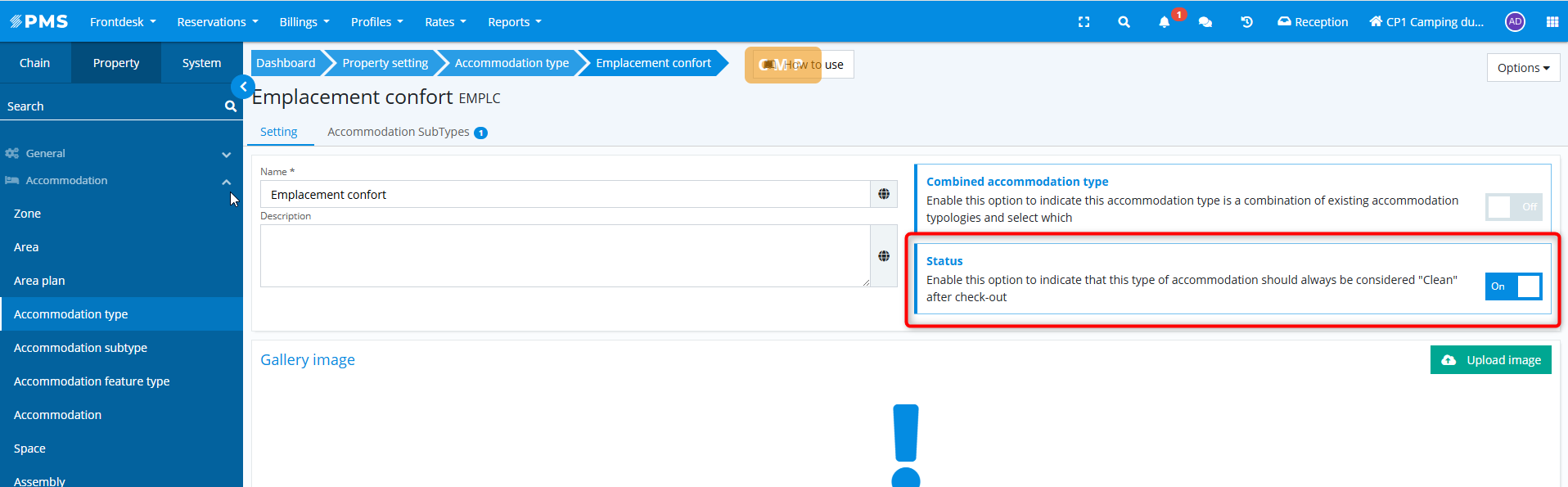
In the accommodation type details (Property Configuration > Accommodation > Accommodation Types)
Checkout Behavior
If the option is Enabled
- The status does not automatically change to Sale
- The accommodation remains Clean
- No automatic cleaning actions are generated
If the option is Disabled
- Standard behavior is maintained
- The status automatically changes to Sale at checkout
Manual Status Change
Even if the option is enabled:
- You can manually change the status to Sale or To Be Checked
- The system will not force an automatic return to Clean
Impact on Check-in
If a user manually changes an accommodation to Sale:
- The check-in block remains active
- Business consistency is maintained